
How to Import a YouTube Playlist into Notion (Step-by-Step Guide)
Notion is the ultimate workspace for building study hubs, research databases, and watch-later lists. But if you have ever tried to manually copy and paste dozens of YouTube videos into a Notion page, you know how tedious it can be.
Instead of copying links one by one, you can export an entire YouTube playlist into a perfectly formatted Markdown file and import it directly into Notion in seconds.
Here is how to turn any YouTube playlist into a clean, structured Notion page without writing a single line of code.
Step 1: Export Your YouTube Playlist as a Markdown File
The first thing we need to do is grab all the data from your YouTube playlist. For this, we will use the free YouTube Playlist Link Extractor tool.
- Go to YouTube, find the playlist you want to save, and copy its URL.
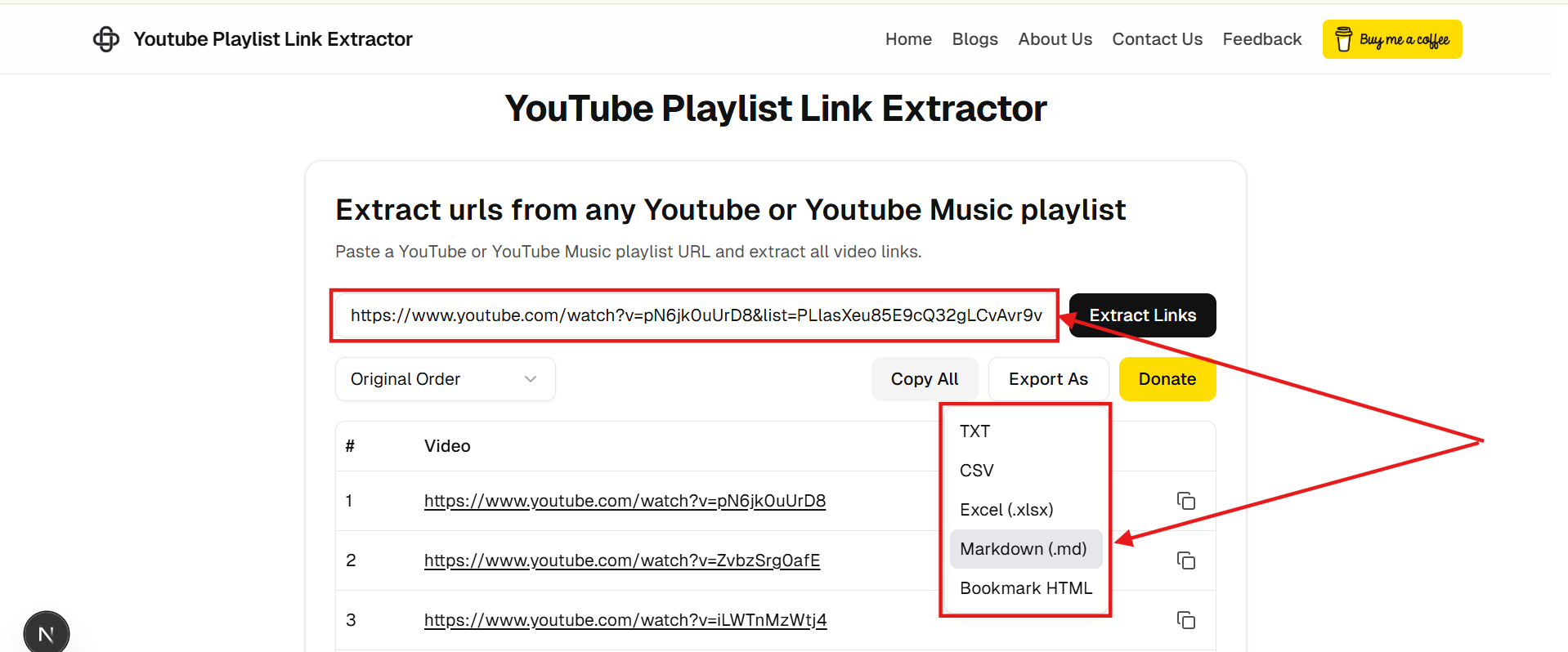
- Open the YouTube Playlist Link Extractor.
- Paste the playlist URL into the input box and click the Extract Links button.
- Once the links are generated, click the Export As dropdown menu.
- Select Markdown (.md) from the list. This will instantly download a file containing the video titles, URLs, durations, and view counts perfectly formatted for Notion.
Step 2: Start the Import Process in Notion
Now that you have your clean Markdown file, it’s time to bring it into your Notion workspace.
- Open Notion and navigate to the section where you want to add your playlist. You can create a new blank page for this.
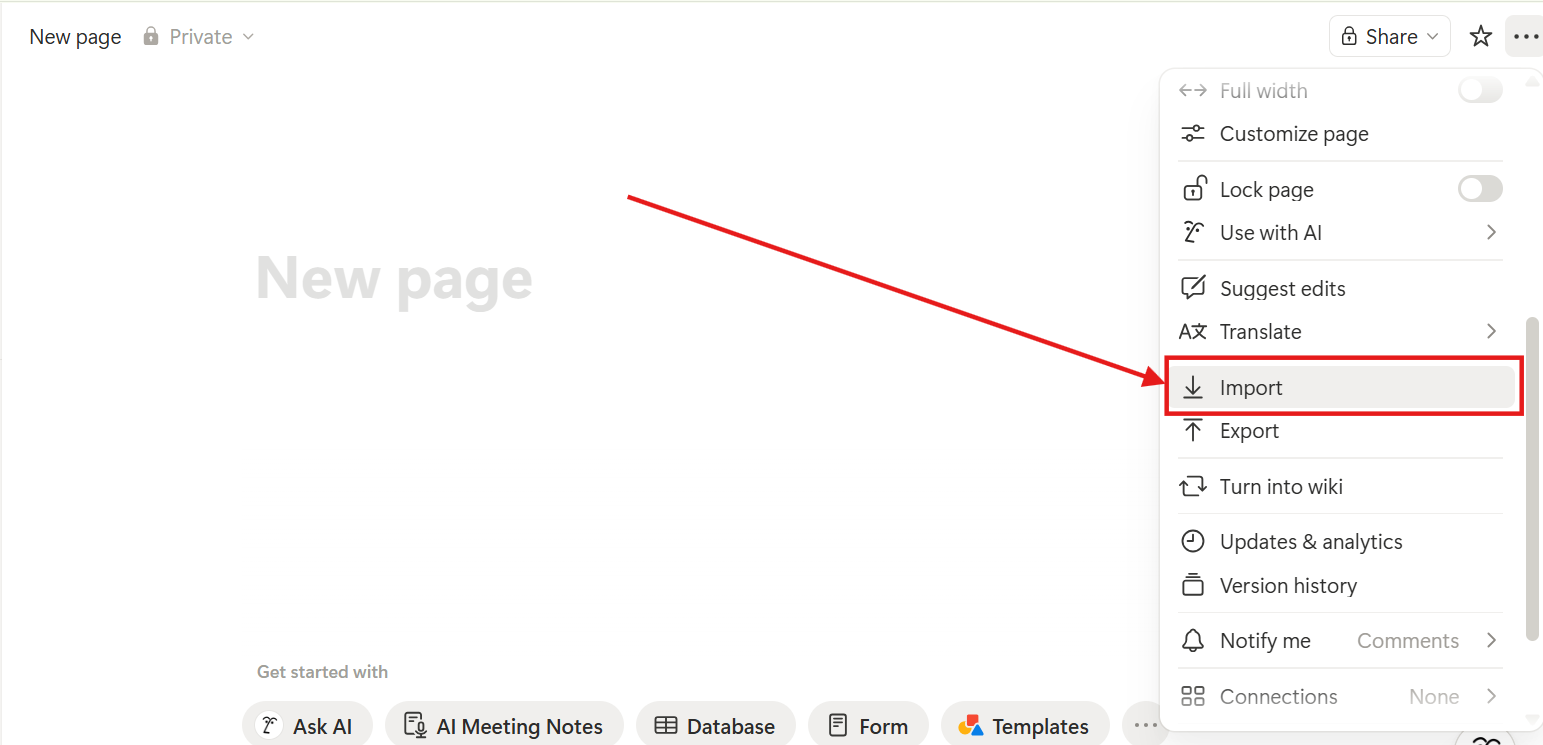
- Look at the top right corner of your Notion page and click the three dots (...) to open the page menu.
- Scroll down the menu and click on Import.
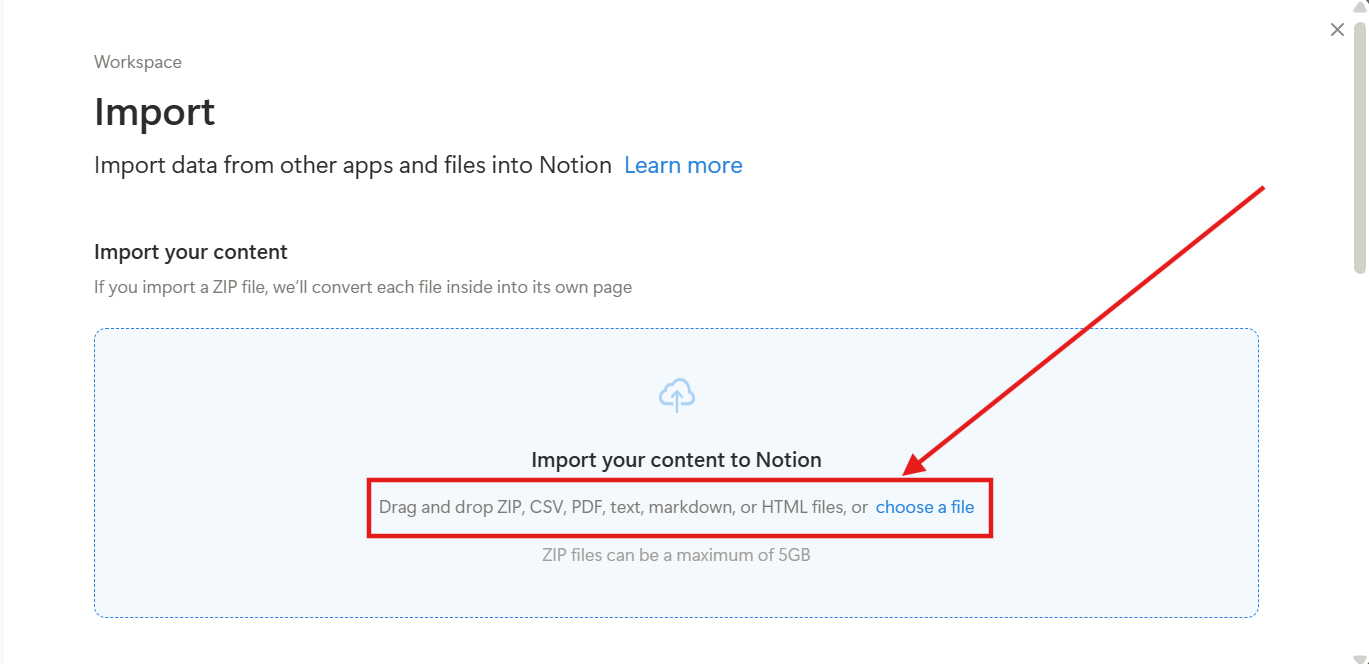
A new window will pop up asking what type of content you want to import.
Look for the file upload area and click on "choose a file" to browse your computer. Select the .md file you downloaded in Step 1.
Step 3: Complete the Import and Organize Your New Page
Notion makes handling Markdown files incredibly seamless.
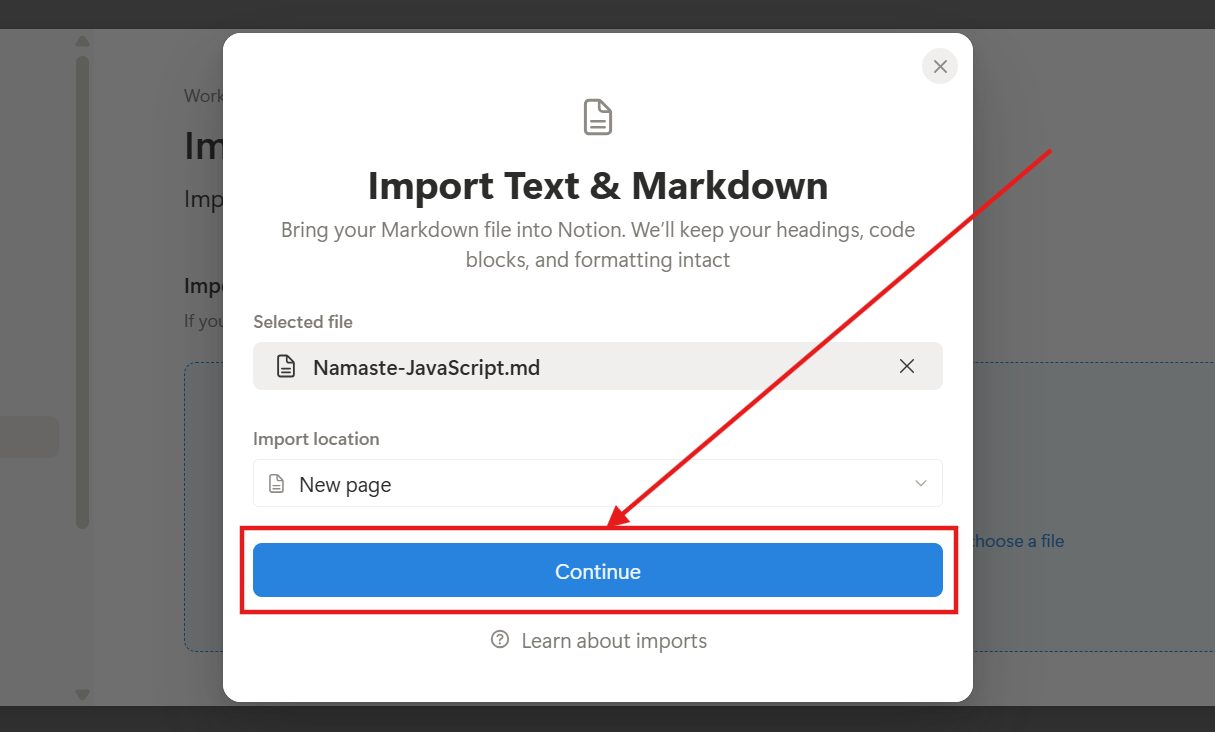
Once you select your downloaded Markdown file, Notion will confirm the selection.
Click the blue Continue button to start the process. Notion will automatically convert the text formatting, keeping all your headings, bullet points, and links perfectly intact.
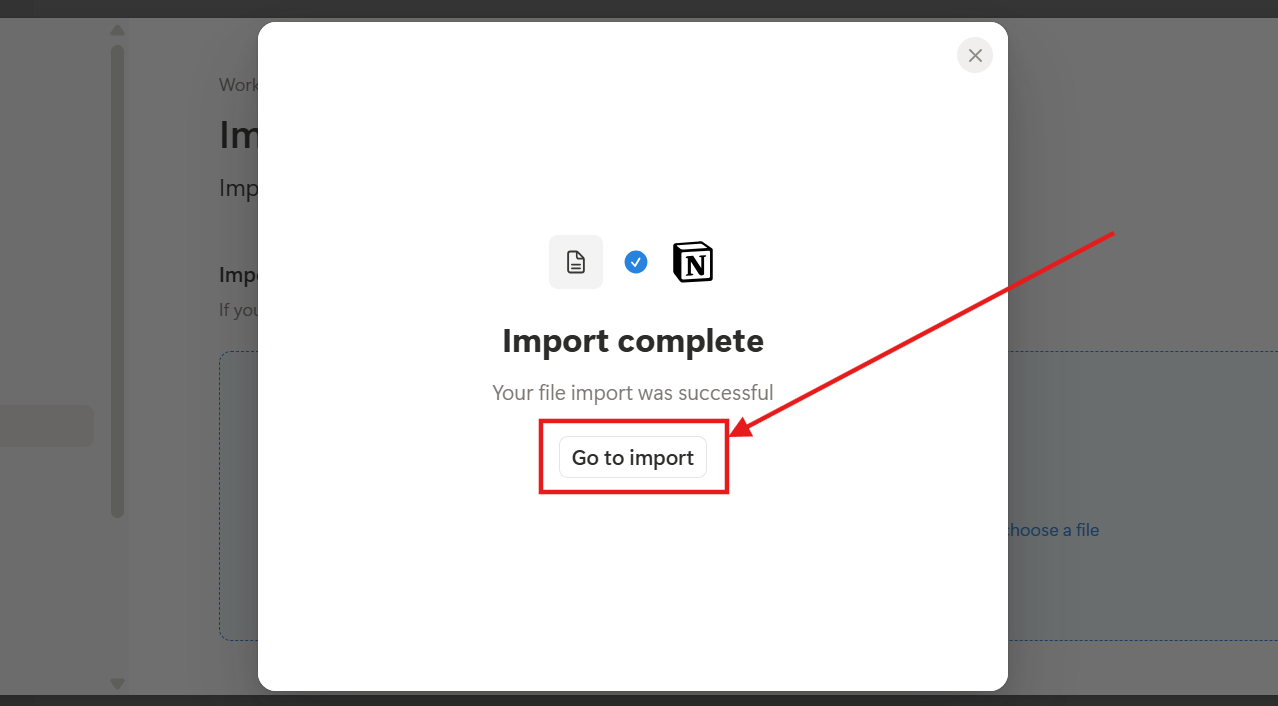
After a brief loading moment, you will see an "Import complete" success message.
Click the Go to import button.
You’re Done!
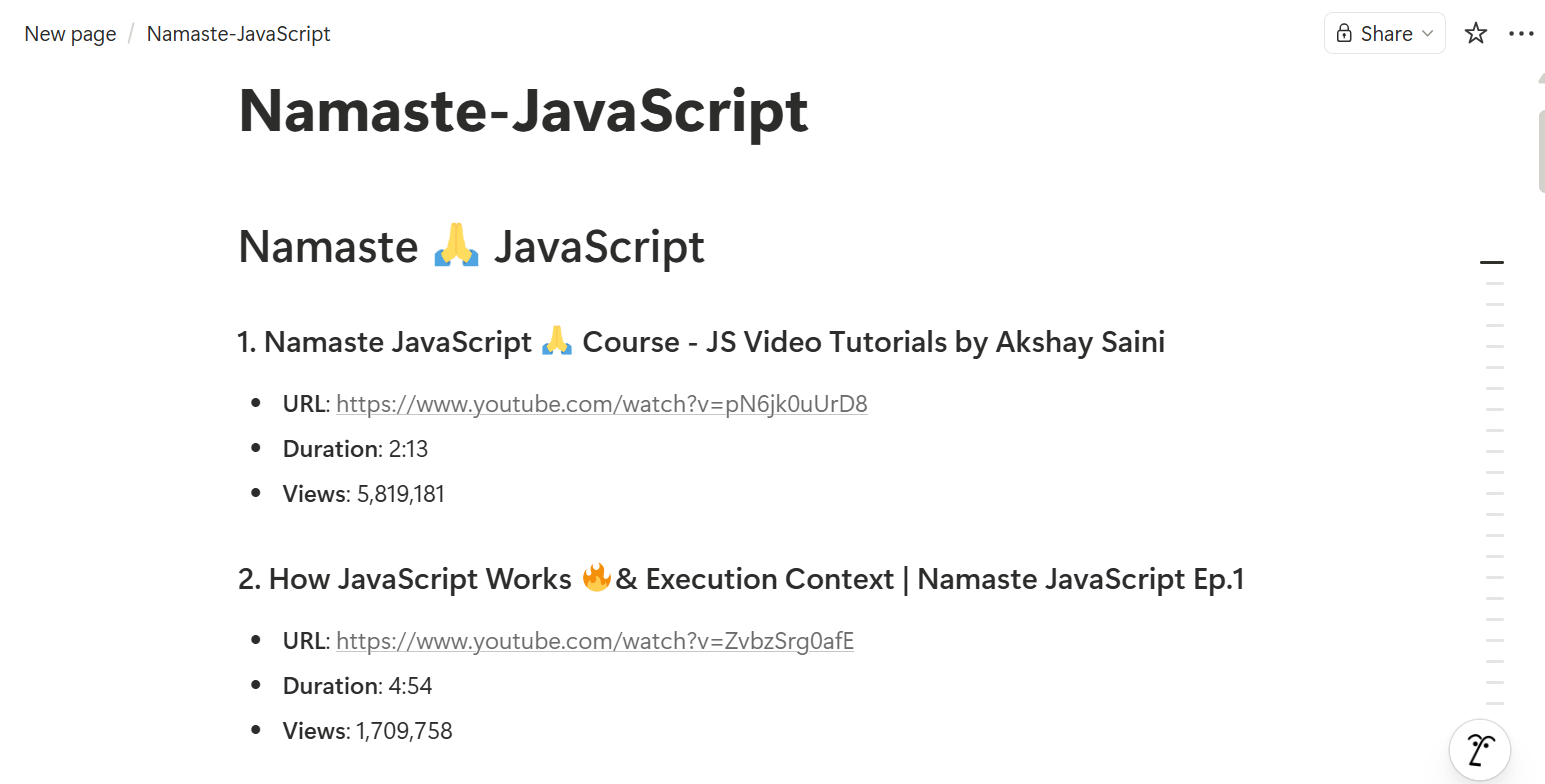
Notion will redirect you to your newly created page. Because we exported the data as Markdown, Notion automatically structures the content into a beautiful, readable list. You will see the main playlist title at the top, followed by a numbered list of every video. Each entry cleanly displays the clickable URL, exact duration, and current view count.
Why This Workflow is a Game-Changer
This method is incredibly practical for anyone organizing educational content or doing research. Instead of a messy block of text, you now have a structured document. From here, you can easily transform these bullet points into a Notion Database (Kanban board or table), add "Notes" checkboxes next to each video, or tag them by category!