
How to Import a YouTube Playlist into NotebookLM (Step-by-Step Guide)
Google NotebookLM is a game-changer for anyone who does deep research or study. It's an AI-powered notebook that uses your own documents as its "source of truth." Unlike typical AI, it won't hallucinate as much because it primarily focuses on the data you provide.
Some of its best features include generating instant summaries, creating study guides, and even producing "audio overviews" that sound like a professional podcast discussing your notes. You can check it out here: Google NotebookLM.
The only challenge is that NotebookLM loves documents like PDF, Text, and Markdown. It doesn't natively watch an entire YouTube playlist for you. But, by combining it with our tool, you can bridge that gap in seconds.
Here is my personal workflow on how I turn a massive YouTube playlist into a structured research hub in NotebookLM in just 4 simple steps.
Step 1: Export Your YouTube Playlist as a Markdown File
The first thing you need to do is grab the content from your YouTube playlist. I've already written a very detailed step-by-step guide on the home page about how to use our extractor.
Go there, paste your playlist link, and make sure you select Markdown (.md) from the "Export As" menu. This will instantly download a file containing all the video titles, URLs, and descriptions perfectly formatted for NotebookLM to read.
Step 2: Create a New Notebook in NotebookLM
Next, head over to NotebookLM. If you haven't used it before, just sign in with your Google account.
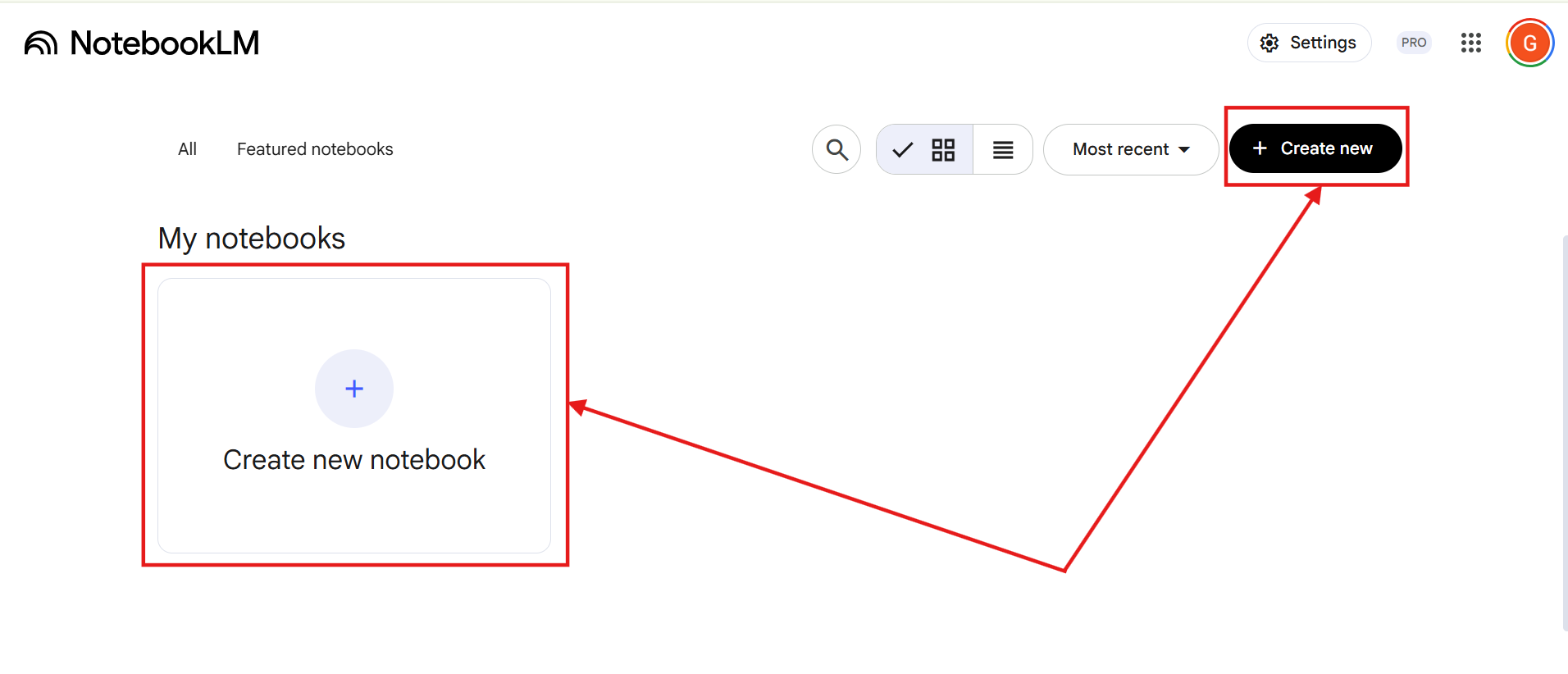
On your dashboard, click on the "Create new" button or the plus icon under "My notebooks." This creates a fresh workspace specifically for your playlist data.
Step 3: Upload Your Markdown File
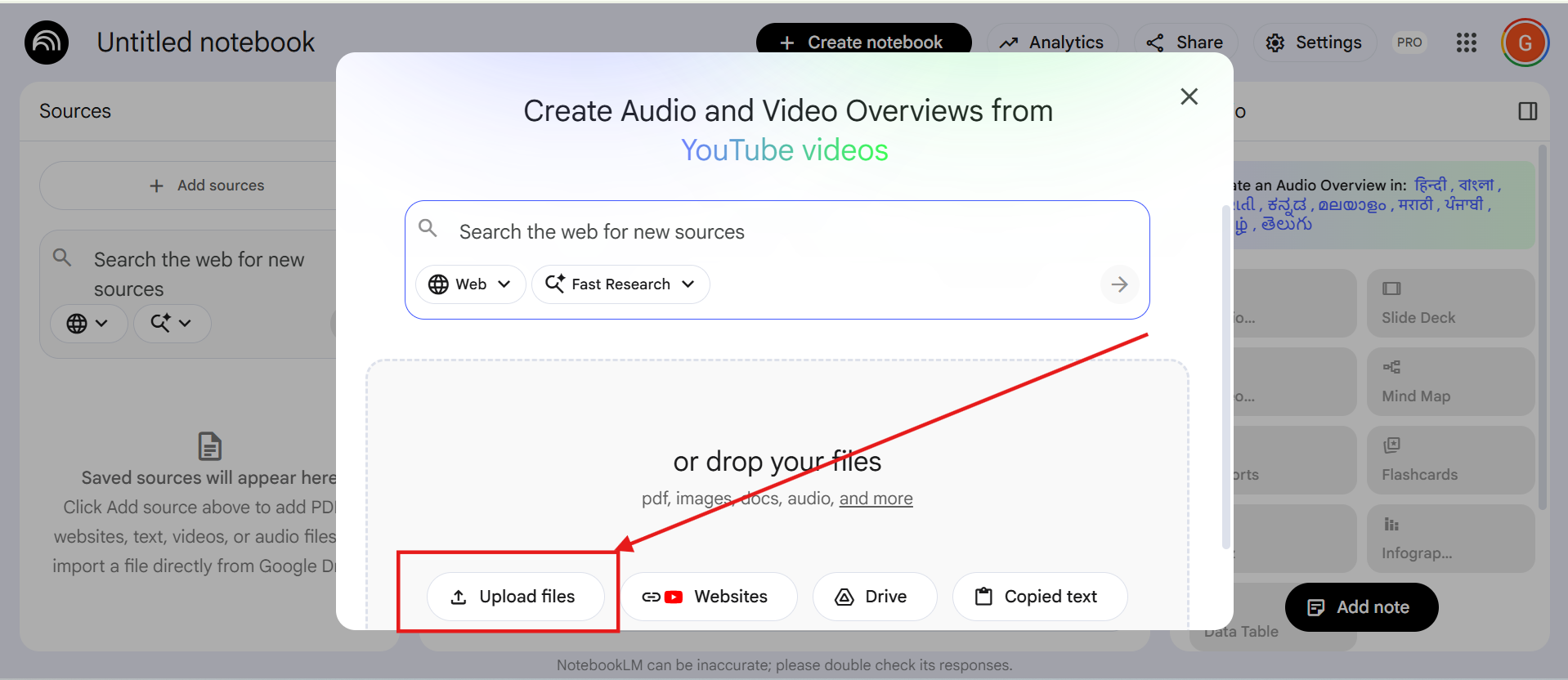
Once your notebook is created, a window will pop up asking for your sources. This is where you feed the AI your data.
Click on the "Upload files" button. Find the Markdown file you just downloaded from our tool and upload it.
Step 4: Generate AI Insights and Audio Overviews
That’s it! Your YouTube playlist is now a "source" in your notebook. NotebookLM will instantly analyze all the videos.
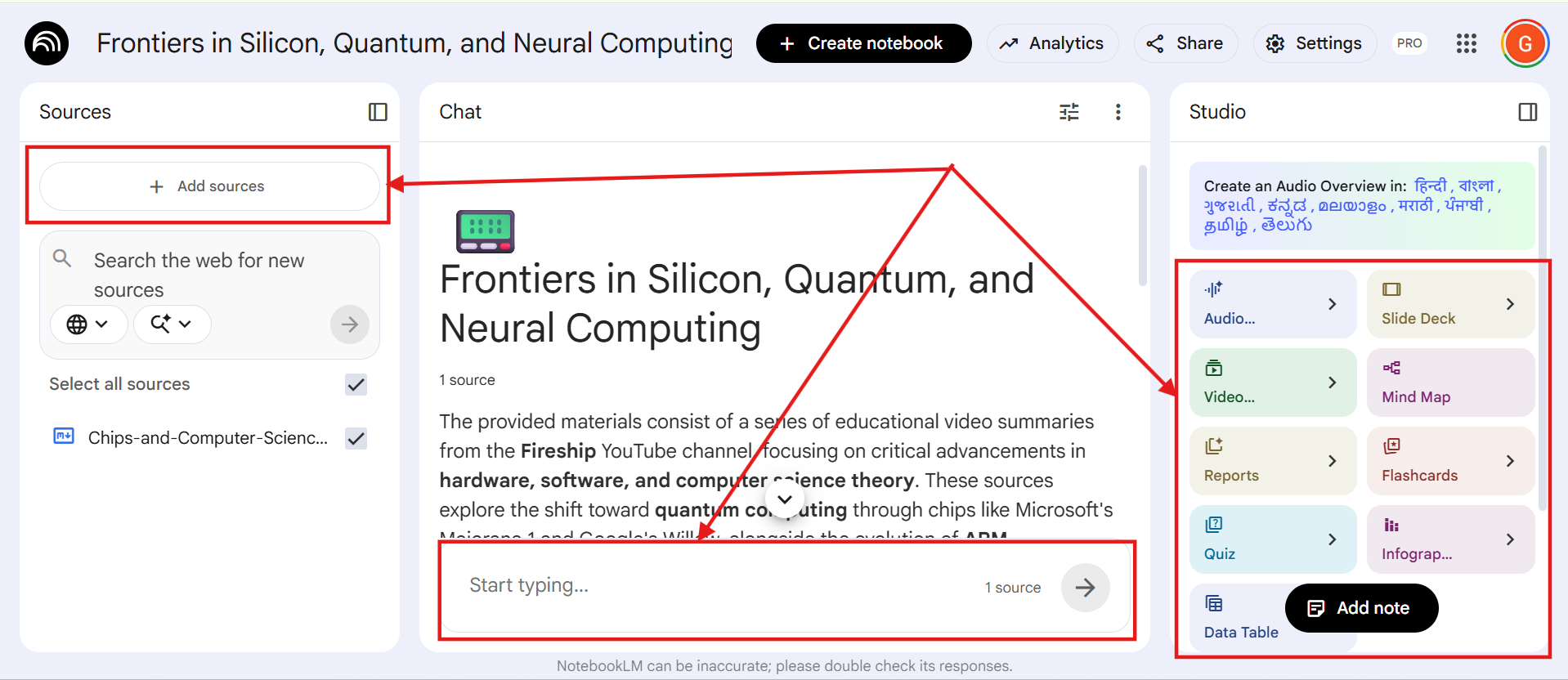
You can now use the chat box at the bottom to ask questions like "What are the common themes across all these videos?" or "Create a detailed summary of the second half of the playlist."
But the real magic happens in the Studio on the right side. You can generate:
- Audio Overviews: A professional podcast-style discussion of your videos.
- Video Overviews: A high-level summary of the visual and spoken content.
- Study Guides & Reports: Structured summaries for deep learning.
- Interactive Tools: Generate Mind Maps, Flashcards, and Quizzes to test your knowledge!
- Visual Aids: Create Slide Decks, Infographics, and Data Tables to organize your research.
My Personal Learning Hack
I personally use this method every time I want to learn something new via a YouTube playlist. Whenever I find a great course or a list of tutorials, I don't just start watching the first video.
Instead, I follow this exact process: I extract all the data, import it into NotebookLM, and then I ask the AI a few high-level questions. This gives me a "big picture" idea of what the playlist covers and which videos are the most important for me. Once I have that "mental map" of the course, I start watching the videos. It makes the whole learning process much faster and more organized! I hope it helps you in your research too!